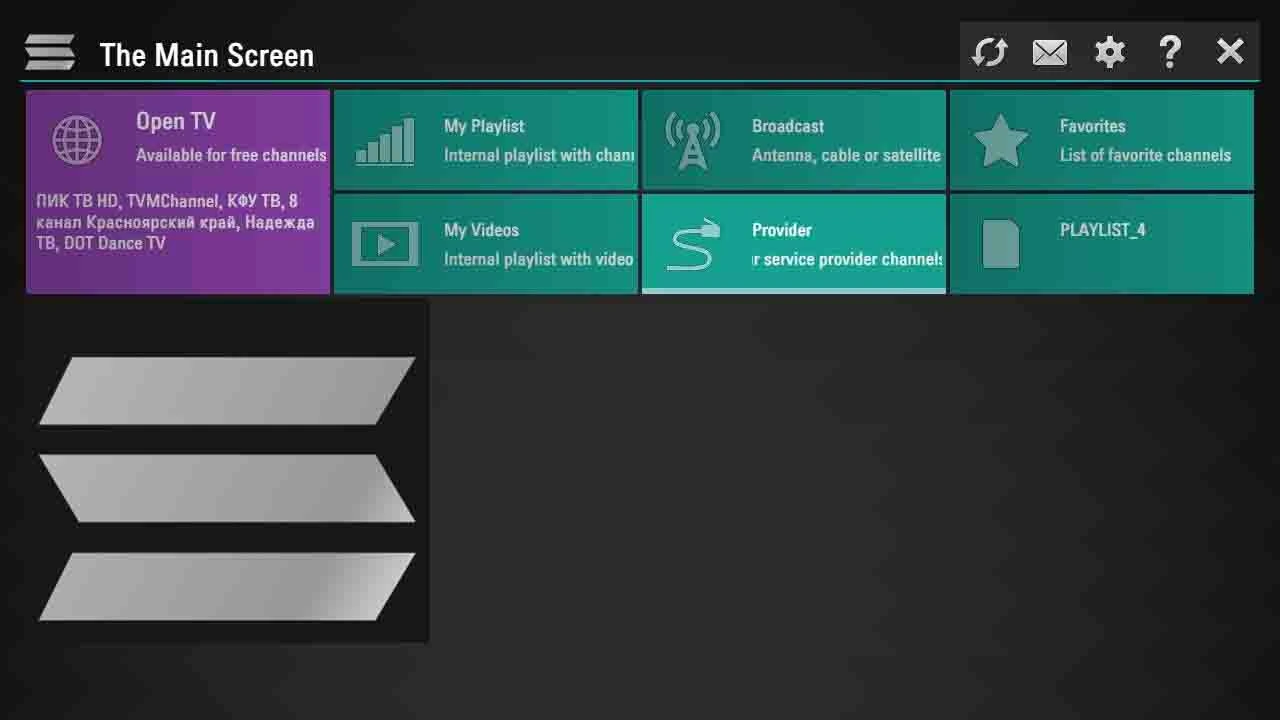
There’s a reason SS IPTV keeps showing up in conversations among streamers, tech tinkerers, and Smart TV users alike — and it’s not just hype. It’s versatile. It’s lightweight. And if you know how to use it right, it opens a world of live channels and playlists without locking you into overpriced subscriptions or bloated apps.
But here’s the thing: most people don’t really get what SS IPTV is, or how to unlock its full potential. That’s where this guide comes in.
We’re not here to throw jargon at you. We’re here to walk you through the real stuff — step by step. From installing it on your LG or Android TV to uploading playlists that actually work, we’ve got your back. If you’re tired of vague tutorials and recycled advice, you’re in the right place.
Let’s dig in.
Table of Contents
What is SS IPTV?
SS IPTV isn’t just another name in the crowded IPTV space — it’s a lean, powerful media player built with Smart TVs in mind. Unlike traditional streaming apps that come with preloaded channels, SS IPTV gives you the control. You bring your own playlists, customize your viewing experience, and access a wide range of content — from live sports to international channels — without relying on bloated software or sketchy middlemen.
What sets it apart? For starters, it’s one of the few IPTV players officially available in TV app stores like LG Content Store. That alone puts it ahead of most APK-only alternatives. Add to that its simple interface, multi-playlist support, and built-in parental controls, and you’ve got a solid tool for personalizing how you watch TV.
Key Features of SS IPTV
SS IPTV is deceptively simple on the surface, but there’s a lot under the hood. Here’s what makes it tick:
- Device Compatibility: Works seamlessly with LG and Samsung Smart TVs, Android boxes, and even Android TV OS.
- Multi-Playlist Support: Upload more than one M3U playlist and switch between them without hassle.
- PIN Code Protection: Keep certain content locked behind a parental control pin.
- Customizable Interface: Rearrange channels, add your own logos, and make it feel like your platform.
- Remote Playlist Upload: Access the web portal from your browser, enter the on-screen code, and upload your playlists — no cables, no clutter.
Whether you’re a casual viewer or a power user managing multiple sources, SS IPTV keeps things clean and efficient.
How to Install SS IPTV
Installation is where most people get tripped up — not because it’s hard, but because there’s a lack of clarity. Let’s fix that.
On Android Devices
You won’t always find SS IPTV on Google Play in every region. The safest route? Download the official APK from trusted sources or the developer’s site. Once downloaded:
- Enable “Install from Unknown Sources” in settings.
- Open the APK and follow the prompts.
- Launch the app and note the on-screen connection code for playlist setup.
On Smart TVs
SS IPTV is officially supported on some models, which is rare in this space.
- LG TVs: Go to LG Content Store → Search “SS IPTV” → Install
- Samsung (Tizen): Available in specific markets or via developer mode
- Once installed, launch the app, generate the PIN code, and you’re ready to connect it to the web portal for playlist upload.
It’s smooth, fast, and doesn’t require sideloading if your TV supports it.
Adding and Managing Playlists in SS IPTV
This is where the magic happens — but only if you know how to handle it right. SS IPTV doesn’t come with any channels built-in; it’s just a vessel. You bring the fuel.
To get started, launch the app and take note of the connection code displayed on your screen. Then head to the official SS IPTV Web Portal from your browser. Enter the code and you’ll gain access to the playlist editor.
You can upload M3U or XSPF playlists, either as direct URLs or file uploads. Need multiple lists? No problem — the app supports more than one and lets you switch between them with ease. Want categories, logos, or EPG? You can customize those too — but make sure your links are reliable.
Pro tip: Stick with fresh playlists from trusted sources. Reddit, IPTV forums, or premium providers are your best bet. Avoid links that haven’t been updated in weeks — they’re usually dead on arrival.
SS IPTV vs Other IPTV Players
Now let’s talk about where SS IPTV stands in the grand arena.
TiviMate is sleek, advanced, and packed with features — but it’s Android-only and requires a premium upgrade for the full experience.
Smart IPTV has name recognition but lacks polish and feels a bit… stuck in time.
IPTV Smarters is excellent for subscription-based services but overkill if you’re just managing your own playlists.
SS IPTV hits that sweet spot:
- Lightweight
- Free
- Fast
- Easy to install on Smart TVs
Sure, it doesn’t have features like recording or multi-screen playback — but that’s by design. It’s not trying to be everything. It just wants to be good. And it is.
If you’re running your own playlists or managing multiple links for different regions or genres, SS IPTV offers more flexibility than most. And for LG or Samsung TV owners? It’s a no-brainer.
Free or Paid: What’s the Cost?
Let’s clear up the confusion. SS IPTV is 100% free to install and use — there’s no subscription fee, no upsell, and no locked features that require payment. The app itself doesn’t provide channels or content — you provide your own via M3U or similar playlist formats.
So why do people still associate IPTV with cost?
Because IPTV services — the actual content providers — often charge a monthly fee. SS IPTV is just a player. Think of it like VLC for your TV: it doesn’t care what you feed it, as long as the format works.
That said, some third-party playlist providers may charge for access to higher-quality, more stable streams. That cost is tied to the content, not the app.
Bottom line? The app is free. What you stream — and how much it costs — is entirely up to you.
Is SS IPTV Safe and Legal to Use?
This is the question everyone dances around — let’s face it head-on.
The app itself is completely legal. SS IPTV doesn’t host content, doesn’t promote piracy, and doesn’t ship with channels. It’s a tool — nothing more, nothing less. Legally, it’s no different than a media player. What makes the waters murky is what users stream with it.
If you’re using publicly available, legal streams (like free-to-air or self-hosted content), you’re totally in the clear. But if you’re plugging in paid M3U links from questionable sources promising “all sports, all movies, all channels” — yeah, that’s a gray area. In some countries, that’s a red flag.
This is why many users pair SS IPTV with a VPN — to protect their identity and bypass ISP throttling. It’s not about hiding shady behavior; it’s about preserving privacy in a world that loves to watch what you’re watching.
Frequently Asked Questions
Can I watch Netflix or Disney+ with SS IPTV?
No. These platforms use encrypted streams and official apps. SS IPTV is built for open playlist formats, not premium streaming giants.
How much does IPTV usually cost?
The player is free. The content? That depends. Some M3U playlists are free. Others charge $5–$15/month for more stable or premium content.
Can I use SS IPTV on iPhone or iPad?
Not directly. SS IPTV isn’t available in the iOS App Store. However, you can upload playlists and use compatible IPTV web players or look for browser-based access if supported.
Is IPTV better than cable?
If you’re looking for flexibility, global channels, and no contracts — yes. But it requires more tech-savviness and a good internet connection.
What’s the difference between IPTV and regular TV?
IPTV delivers content over the internet, while regular TV uses satellite or cable. IPTV gives you more control, but it’s also more hands-on.
Tips and Best Practices
Use a VPN
Even if you’re not doing anything shady, using a VPN can help you avoid regional restrictions, ISP throttling, and unexpected privacy leaks.
Keep Your Playlists Fresh
Most free playlists expire or die after a few days. Bookmark sources you trust and refresh them weekly.
Use Stable Internet
Buffering kills the experience. A stable 20Mbps+ connection (wired or strong Wi-Fi) is key for smooth playback.
Avoid Overloaded M3U Files
If your playlist has thousands of channels, SS IPTV can lag. Curate your own smaller list for better performance.
Explore Browser Integration
Some versions allow IPTV playback via browser — handy for testing links before pushing them to your TV.
Final Thoughts: Is SS IPTV Worth It in 2026?
In a world flooded with IPTV apps — flashy ones, shady ones, pay-to-play ones — SS IPTV still holds its ground. It’s free, reliable, and smartly designed for exactly what it promises to do: let you control what you watch, how you watch it, and on which device.
No subscription walls. No bloated updates. No drama.
If you’re the kind of viewer who prefers flexibility over flash, who’s comfortable managing playlists and doesn’t mind a little DIY setup, SS IPTV is absolutely worth it in 2026. Especially if you own a Smart TV — it’s one of the few IPTV players that actually belongs there.
Of course, it’s not perfect. It won’t replace Netflix. It doesn’t hold your hand. But that’s the point. It gives power back to the user — and in today’s streaming landscape, that’s rare.
So yes — SS IPTV still earns its spot on your home screen.