You know that feeling — popcorn’s ready, lights are low, you hit Play… and boom. Error NW-2-5. A tiny code on the screen, yet somehow enough to ruin the whole night.
Then comes the guessing game: is it your Wi-Fi? Your VPN? Netflix’s servers? Or something darker — a login you don’t recognize in your account history? In this ultimate Netflix Troubleshooting guide, we will walk you through how to fix them.
Netflix makes streaming look effortless, but beneath that sleek interface lives a tangle of tech, privacy layers, and regional barriers that most users never see. Every error, every sudden logout, every “this title isn’t available in your region” message — it all points to an invisible web of configurations, caches, and security checks humming under the surface.
And that’s exactly why you need a technical hand.
Because Netflix isn’t just entertainment anymore — it’s a networked ecosystem, and when it breaks, guessing doesn’t cut it.
This guide is your control room.
The Netflix Hub was built for the nights when things go wrong — when the screen freezes, the VPN fails, or you’re locked out for reasons that make no sense. Here, you’ll find real troubleshooting written by real experts — the kind who’ve cracked hundreds of Netflix issues across TVs, laptops, Firesticks, and phones.
We’ll go deep — into the error codes, the VPN blocks, the account security traps, and the hidden settings that make all the difference.
Whether you want to unlock a restricted catalog, secure your account, or make Netflix actually work like it should, everything starts right here.
Welcome to the Netflix Technical Command Center.
Let’s get your stream back — the smart way.
Table of Contents
Section 1: Decoding the Dreaded Netflix Error Codes
You’re halfway into your favorite series, the plot’s about to twist — and boom:
Error NW-2-5.
The screen freezes. The vibe dies. And suddenly, you’re googling cryptic numbers that feel like they came from NASA.
Let’s decode this madness once and for all.
Netflix error codes aren’t random — they’re breadcrumbs. Each one whispers where the problem hides: the network, the cache, or your device itself. Below, we’ll break them down by type — so you can fix smarter, not harder.
1.1 Common Network & Connection Errors
These are the ones that come from your connection, not your device. Netflix can’t talk to its servers — and it’s waving the red flag with codes like:
- NW-2-5, NW-3-6, TVP-832
What’s really happening:
Your internet is fine for browsing, but your DNS or router firewall might be blocking Netflix servers. Think of it like your Wi-Fi handshake failing halfway through.
Quick Fix:
- Restart your router and modem.
- On Smart TVs or consoles, sign out and back into Netflix.
- If it persists — try setting Google’s DNS (8.8.8.8 / 8.8.4.4).
Deep Dive: [See our full guide on fixing Error NW-2-5 here → Fix Netflix Error NW-2-5]
1.2 Browser & Computer Errors
You’re watching from Chrome, Firefox, or Edge — then suddenly:
M7111-1331 or M7031-1101 hits you.
The hidden culprit:
Old cookies, corrupted Netflix data, or an overprotective browser extension (looking at you, VPN or ad-blocker).
How to fix:
- Clear Netflix cookies directly (search “Netflix clear cookies”).
- Disable extensions one by one — especially VPN, antivirus, and script blockers.
- Relaunch and re-login.
Pro Tip: Chrome users, open chrome://settings/cookies/detail?site=netflix.com — nuke them manually.
Full Tutorial: [Learn how to clear specific browser data to resolve Error M7111-1331 → (Link to Cluster Post 2)]
1.3 Device and Cache Refresh Errors
You’re on a smart TV, Firestick, or console — and UI-800-3 or UI-113 pops up like an uninvited guest.
Why it happens:
Netflix’s app cache holds stale data or broken session files. Your device is basically looping outdated credentials.
Quick Reset Method:
- Sign out of Netflix on the device.
- Unplug your TV or stick for 30 seconds.
- Plug it back in and reinstall the Netflix app if needed.
Bonus Fix: On Firestick, clear Data + Cache under Settings → Applications → Manage Installed Apps → Netflix.
Section 2: Account Security, Hacking, and Unauthorized Access
You open Netflix, ready for comfort.
Instead, you see “Elite: Season 7” — and you’ve never even heard of Season 1.
Someone’s been living inside your account.
It’s not paranoia. Netflix credentials are one of the most traded items on dark-web marketplaces. One leaked password and—boom—your profile’s suddenly shared with a stranger in another time zone. Let’s lock your digital doors.
2.1 Stopping Unauthorized Account Use
User Problem:
Random profiles, ghost watchers, or that dreaded “Too many people are using your account” message.
What’s Happening:
Your password’s been phished, leaked, or casually shared and passed around. Netflix’s login doesn’t automatically cut old sessions, so freeloaders can hang around forever.
Step-by-Step Lockdown:
- Visit Account → Security → Manage Access and Devices.
- Click Sign out of all devices.
- Change your password immediately — and this time, make it strong (unique, long, and never reused).
- Enable login-alert emails so you know when a new device joins.
Pro Tip: Keep an eye on the Recent Device Streaming Activity page — if a login pops up from a country you’ve never visited, it’s not a glitch.
🔗 [Full Tutorial: How to Kick All Hackers Off Your Netflix Account → (Link to Cluster Post 4)]
2.2 Phishing, Scams, and Identity Protection
User Problem:
Emails or texts claiming your “billing failed” or that your “subscription will be canceled.”
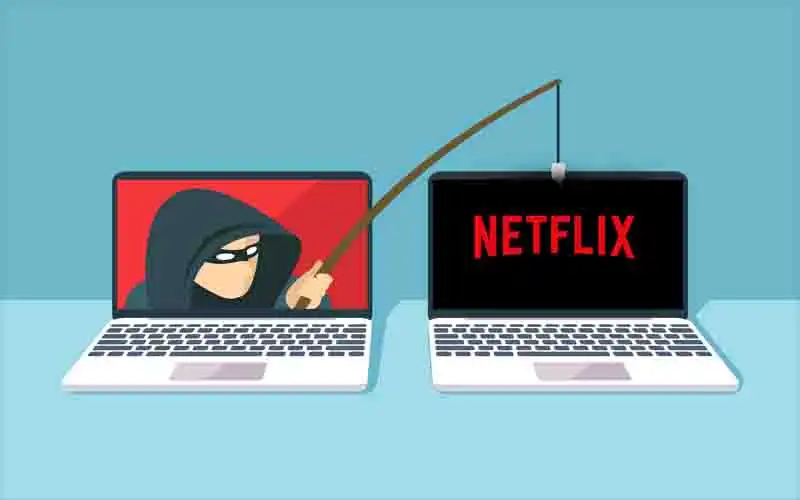
The Reality:
Hackers copy Netflix branding so perfectly that even seasoned users click before thinking. One wrong move, and you’ve handed over your password and credit card.
How to Outsmart the Trap:
- Netflix never asks for billing updates via external links.
- Check the sender’s address — if it doesn’t end with @netflix.com, delete it.
- Don’t tap links; go straight to Netflix.com and log in from there.
- Use a password manager to generate and store unique credentials.
Advanced Protection Move:
Netflix doesn’t have two-factor authentication yet, but you can still use a password manager that requires biometrics or a master key — effectively adding your own second layer.
Section 3: The VPN Battlefield — Geo-Restrictions & Proxy Errors
You’ve done everything right: VPN on, location set to the U.S., subscription active.
Then Netflix flashes: “Whoops, something went wrong. You seem to be using an unblocker or proxy.”
Cue frustration, curses under your breath, and the temptation to throw your device across the room.
This section is your field manual for navigating the Netflix VPN warzone. We’ll explain why it happens, how to fix it fast, and how to keep streaming uninterrupted — without constantly switching servers or risking a blocked account.
3.1 Why You See the “Proxy Detected” Error
Technical Reality:
Netflix doesn’t just guess — it detects VPNs and proxies using:
- IP address tracking (shared VPN IPs are flagged)
- DNS leaks (your device gives away your real location)
- Geo-restriction policies per title
Quick Fix:
- Clear your local DNS cache (your device might still be “remembering” your real location).
- Disconnect and reconnect your VPN — try a different server node.
- Only use Netflix-verified or streaming-focused VPNs.
💡 Pro Tip: Free VPNs are almost always detected. Paid, high-rotation IPs drastically reduce the “proxy detected” headache.
🔗 [Technical Deep Dive: How to Clear Local DNS Cache to Bypass the Proxy Error → (Link to Cluster Post 6)]
3.2 Troubleshooting a Previously Working VPN
Your VPN worked yesterday, but today… nothing. Netflix still blocks you.
Why it happens:
- Netflix rotates its IP blacklists constantly.
- VPN servers get overcrowded or flagged.
- Protocol mismatches can trigger detection (OpenVPN vs. WireGuard).
How to fix it:
- Switch to a different VPN server or region.
- Change the VPN protocol in settings.
- Restart your device to clear stale connection data.
💡 Pro Tip: Always check your VPN provider’s recommended Netflix servers — they update constantly for 2025 streaming.
Section 4: Device-Specific Performance & Streaming Quality
Netflix is supposed to be magic. One click, one chill, one cozy evening — boom, your favorite show plays. But sometimes… it’s anything but magic. The screen stutters like it’s possessed, downloads vanish into the void, and your Firestick or TV seems to be mocking you.
If you’ve ever shouted at your Smart TV or tossed your phone across the room because Netflix “just won’t work,” you’re in the right place. This section is your battlefield map for device-specific disasters — the fixes, the hacks, the one-two punches that actually get your streaming back on track.
4.1 Smart TV & Streaming Stick Issues
Devices: Roku, Firestick, Samsung/LG TVs, Apple TV
Symptoms That Make You Rage:
- Buffering every 5 seconds — the plot twists are impossible to follow
- Black screens that appear like Netflix swallowed the episode
- Apps that refuse to update, install, or even launch
Why It Happens:
- App cache acting like a hoarder, storing outdated files that break everything
- Firmware that’s one update behind reality
- Wi-Fi or network hiccups, because apparently, streaming is rocket science
Fix Like a Pro:
- Unplug it. Wait. Breathe. Then plug it back — magic, sometimes.
- Clear the app cache — it’s like a detox for your Netflix app.
- Update firmware and the Netflix app — old tech hates new content.
- For persistent stuttering: peek at your router settings. Yep, some TVs get throttled for no reason.
4.2 Mobile & Offline Download Troubleshooting
Devices: iOS & Android
Symptoms That Ruin Your Commute or Couch Time:
- “Too many downloads” error when you just wanted offline bliss
- Videos that freeze mid-episode, crash mid-season, vanish mid-download
- App crashes after updates — Netflix apparently likes chaos
Why It Happens:
- Download limits per device — Netflix keeps score
- App cache gone rogue, corrupted files lurking
- OS updates messing with your perfectly functional app
Fix Like a Legend:
- Delete expired or watched downloads — free up space, reclaim sanity.
- Clear app cache via Settings → Apps → Netflix → Storage → Clear Cache.
- Reinstall the app if all else fails — like hitting a reset button on life.
- Update your OS — old software is Netflix kryptonite.
Next Steps to a Flawless Netflix Experience
You’ve navigated the labyrinth: error codes decoded, VPN walls dismantled, hackers booted off your account, and every device optimized for silky-smooth streaming. You’ve fought the spinning red circles, the phantom logouts, the “proxy detected” nightmares — and won.
But here’s the truth: Netflix isn’t static. It evolves constantly — new error codes appear, geo-restrictions tighten, apps update, and devices change. That’s why this hub isn’t just a guide. It’s your living command center — a map, a toolkit, and a shield, all rolled into one.
Bookmark it. Share it. Send it to that friend who’s always complaining about Netflix acting up. And remember: whenever your stream falters, this is where you come first.
Because Netflix problems aren’t just technical — they’re personal. And now, you’ve got the tools, the knowledge, and the expertise to crush them every time.
Your Stream. Your Rules. Your Netflix.